

Appearance
Using Provisional Users with a shared email address
Provisional Users in PICMI provide a streamlined way for individuals to apply for jobs without needing a personal email address or account. This is particularly useful in environments where a shared email address is REQUIRED — for example, by staff assisting applicants at correctional facilities or employment hubs.
Provisional users with a shared email requires all the people completing the application to enter the shared email. All email notifications will be sent to this email inbox.
note
Using this approach requires the business to send instructions to the third-party institution with access code and access keys and for the person to enter the email address into their application.
Summary Steps
- Understand what a provisional user is
- Set up the provisional users
- Enable admin columns: customize your admin table to track provisional users effectively.
- Determine the shared email address: all provisional users enter the same monitored email address.
- Send instructions to third parties: share access credentials by updated and send instructions see below—instructions to the third party.
- Guide users to sign in: use the access code and name at jobs.picmi.io/go to begin.
- Use shared email in the application: all communication will go to the shared inbox.
- Monitor that all people have correctly entered the
Emailaddress in the People page
note
See our guide to returning workers
What is a Provisional User?
A Provisional User is someone who accesses a PICMI job application using an access code and their name, rather than a full account.
This setup is ideal when:
- Applicants do not have or cannot use personal email addresses.
- A facilitator is guiding many individuals through applications.
- Devices such as shared tablets or kiosks are used to access applications.
Shared email context
In organisations like the correctional facilities, applicants use a shared email address that is not in their control and is monitored by the institution for all communication.
PICMI supports this by:
- Routing all contracts and correspondence to that email.
- Tracking each individual’s session through unique access codes.
- Allowing the admin interface to show per-user details such as
Access CodeAccess KeyEmail
Enabling Provisional User columns
To view provisional user info in your admin panel:
- Click the setting icon () above the jobseeker table.
- In the Customise Columns panel, make sure these boxes are checked:
EmailProvisional UserAccess KeyAccess CodeAccess Expires
- Click the Save button.
This ensures you can monitor and manage provisional users easily.
How a Provisional User signs in
To start an application:
- Go to jobs.picmi.io/go
- Enter:
- Access Code
- Name
- Check the "I agree" box
- Click Confirm And Start
The applicant will proceed to the job application form.
What Email Should Be Used?
When asked for an email, provisional users should always enter the shared address
note
All job offers, contracts, and follow-ups will be sent here.
Reference: instructions to the third party
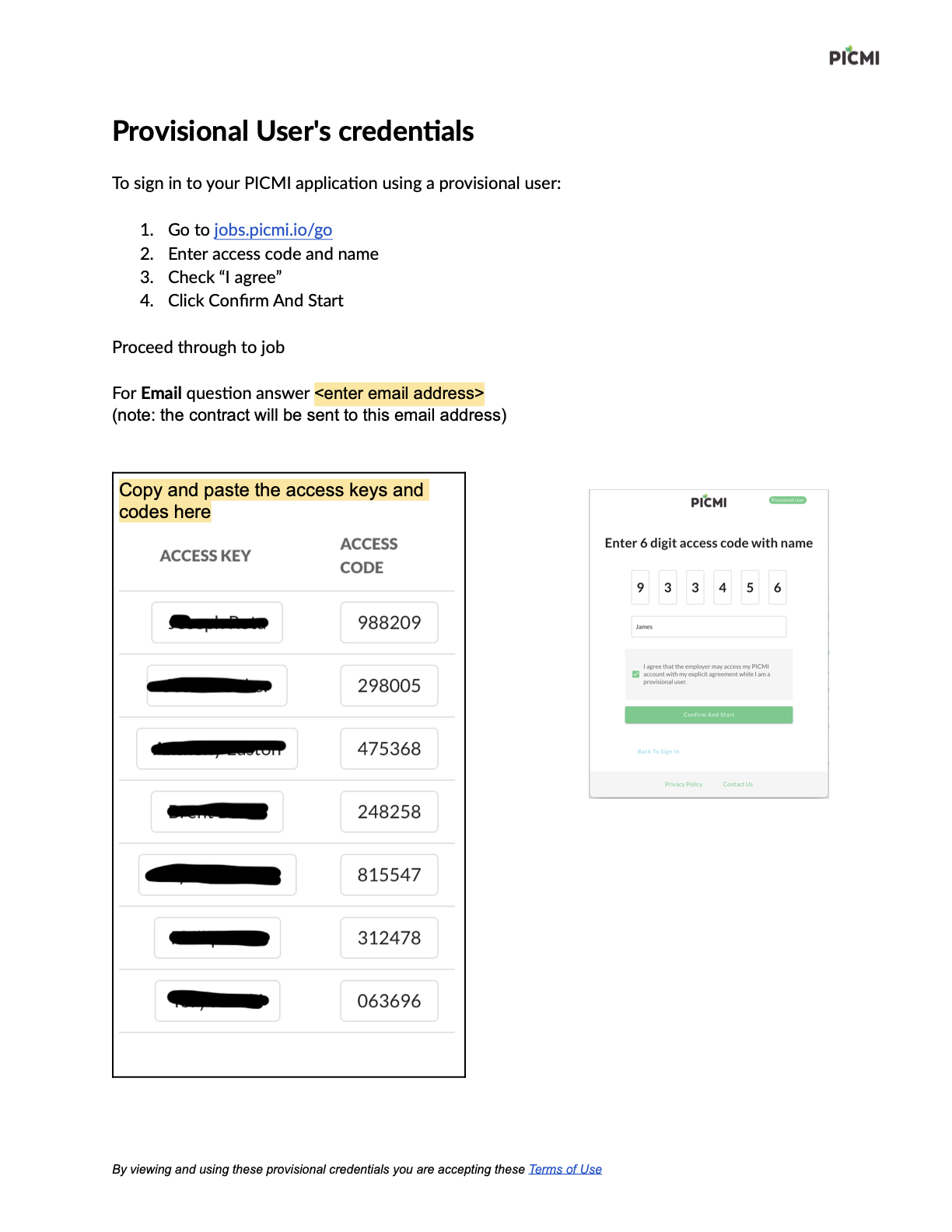
A sample credentials sheet for provisional users can be found here:
Terms of use
By using a provisional user login, the applicant agrees to PICMI’s Terms of Use.